
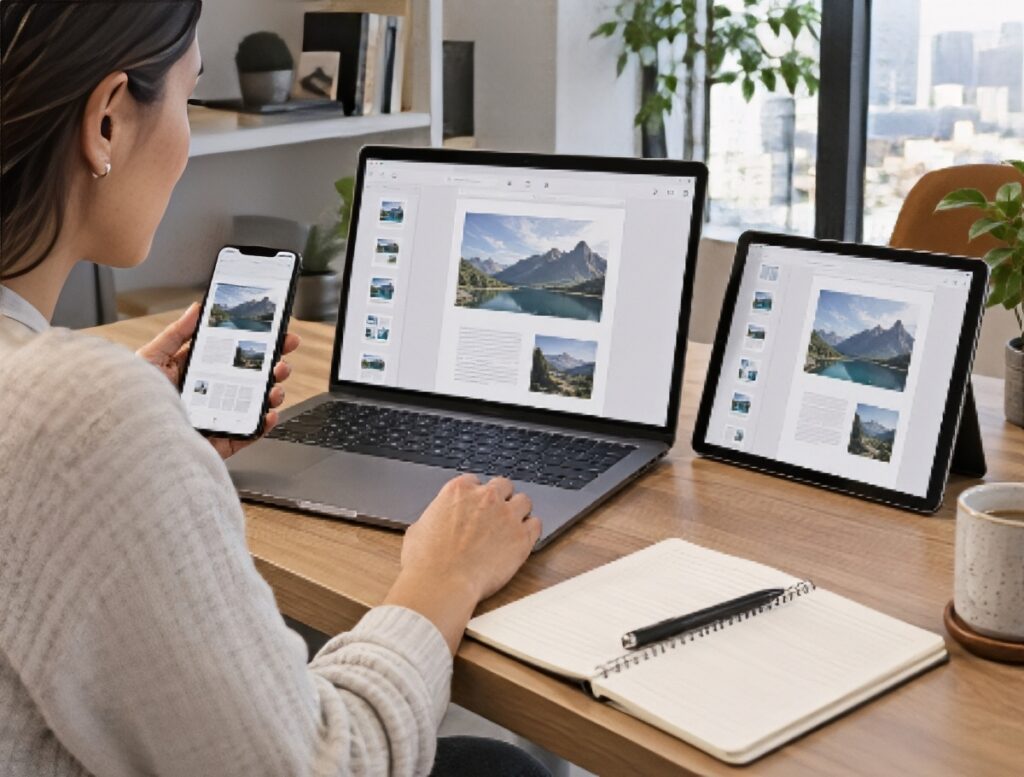
You start a document on a laptop, finish it on a phone in a parking lot, and open it again on a tablet that evening. That is now a normal workday, and most PDF tools were not designed for it. The desktop version does everything. The mobile app can view files and add a signature. The web version is a third thing again, with a different feature set and a different result.
The failure people actually notice is formatting. A file assembled on a laptop opens on a phone with pages rotated, a merged section out of position, or fonts substituted. This guide sorts platforms by the situation you are in, covering which ones genuinely keep page integrity when you combine PDFs and edit them across devices.
Quick picks
- For a genuine cross-device workflow: Lumin. Browser, Mac, and Windows desktop apps, iOS and Android, and a Chrome extension, with changes syncing across all of them.
- For unrestricted free use on any device: PDF24. Browser tools work on Windows, Linux, Mac, and smartphones with no usage caps, plus a free local desktop version.
- For one subscription spanning browser, desktop, and mobile: Xodo. The Document Suite covers all three platforms on a single license.
Why device consistency is harder than it looks
Three things break when a document crosses devices, and they break for different reasons.
Feature parity. Vendors build the desktop product first and port a subset to mobile. You do not find out which subset until you need it on a train.
Rendering differences. A PDF renders differently depending on the engine displaying it. Fonts that are not embedded get substituted, and a substituted font changes line breaks, which changes pagination.
Sync model. If the mobile app works on a downloaded copy rather than the live file, you now have two versions. Whichever one you save last wins, and it is not always the right one.
The workload makes this matter more significant than it used to be. McKinsey Global Institute research found that the average interaction worker spends nearly 20% of the workweek looking for internal information or tracking down colleagues who can help with a task. Duplicate versions created by device switching are a direct contributor.
The market is moving in the same direction. Grand View Research valued the document management system market at USD 8.70 billion in 2025 and projected it to reach USD 18.17 billion by 2030 at a 15.9% annual growth rate, with cloud as the leading deployment model.
Winners by scenario
Best for starting on a laptop and finishing on a phone
1. Lumin
Lumin runs in the browser, as desktop apps for Mac and Windows, as iOS and Android apps, and as a Chrome extension, with the same document available across all of them. Merging specifically works from the browser on Mac, Windows, Android, iPhone, and Linux, and on the mobile app, it sits under Tools, where you add files, arrange the order, then rearrange or edit pages before finalizing.
The sync model is the part that matters. Work syncs back to the tool the document came from, so editing on a phone updates the file in Google Drive rather than creating a second copy on the device. Cross-device use does not produce version drift, which is the actual failure mode people are trying to avoid.
Regarding formatting, Lumin states that merged files retain the original formatting, fonts, images, and layouts from each source document, and that text stays sharp, and images remain clear throughout the merge process.
2. Xodo
Browser tools, a desktop editor, and mobile apps, with a Document Suite license at $14.99 a month on annual billing, covering all three. Free online use is limited to one action per day, so cross-device work requires a subscription.
3. Smallpdf
More than 30 browser tools plus mobile apps, with the free tier applying daily download limits and limited mobile app access. Paid plans lift both.
Skip this scenario if: you only ever work at one desk, where a single desktop application is simpler and often cheaper.
Best for reviewing and signing on a phone
1. Lumin
Signing is mobile-first and works on computers, tablets, and phones; signers do not need to hold a Lumin account to sign. Documents can be tracked from send through to signature with opt-in notifications, and automatic reminders can be set so follow-up is not manual. Signed documents come back with an audit trail and a certificate of completion, which is the same on a phone as on a laptop.
For higher-assurance situations, Verified Digital Signing is an option within the eSignature workflow. A standard eSignature records that a document was signed; Verified Digital Signing records who signed it, with the signer verifying their identity at the point of signing against a verified digital credential. It is optional, and standard eSignatures remain available.
2. DocHub
iOS and Android apps with editing and signature requests, connected to Google Drive, Dropbox, OneDrive, and Gmail. The free tier carries a small monthly signature allowance.
3. Adobe Acrobat
Acrobat Reader is free on mobile for viewing, commenting, form filling, and basic signing. Editing and merging require a paid plan.
Skip this scenario if: every signature you collect happens in person on paper, though that is increasingly rare. Grand View Research projects the digital signature market growing from USD 6.9 billion in 2025 to USD 9.4 billion in 2026 at a 43.9% annual rate.
Best for poor connections and field work
1. Lumin
Offline mode lets you keep editing and merging without a connection, and changes sync when you reconnect. This is the difference between a productive site visit and a list of things to redo later. Being able to open-source files from Google Drive rather than uploading them from a device also removes the slowest and least reliable part of working over a weak mobile connection, since the transfer happens server-to-server.
2. Sejda
A desktop application that processes files locally, so nothing depends on a connection during the task, with the same three-tasks-a-day free limit as the web version.
3. PDF24
PDF24 Creator runs entirely on a local machine with all tools available offline and no usage limits, free for companies as well as individuals.
Skip this scenario if: you work exclusively in an office with reliable connectivity, where offline capability is not worth weighing.
Best for keeping formatting and page order intact
1. Lumin
Two mechanisms rather than one. First, merged files preserve the original formatting, fonts, images, and layouts from each source. Second, and more practically, the merged document opens in Lumin rather than being downloaded as a finished file, so page-level problems can be fixed on the spot. Hover a page thumbnail to delete, reorder, or rotate it. If a page came in sideways from a phone scan, that is a two-second fix on any device rather than a re-run.
2. Sejda
Visual merging with page-level control and the ability to alternate odd and even pages from separate scans, useful for double-sided documents.
3. Adobe Acrobat
Thumbnail-based ordering and page organization on paid plans, with document comparison on the Pro tier for checking what changed between versions.
Skip this scenario if: your documents are simple single-source files with nothing assembled.
Best for Chromebooks and browser-only setups
1. Lumin
Everything runs in the browser, including merging, editing, page organization, annotation, and signing, so a device with no install permissions is not a limitation. A Chrome extension is available, and Google Workspace SSO can be enforced so members sign in with Google. Lumin holds a 4.8 out of 5 rating on Trustpilot.
2. PDF24
Browser tools work on any current operating system and browser with no installation, no account, and no artificial usage limits.
3. iLovePDF
A wide free browser toolkit covering merge, split, compress, convert, rotate, and unlock, with the free Basic plan limited to the web and to limited document processing. Premium at $5/month, billed annually, adds desktop and mobile apps.
Skip this scenario if: your organization requires locally installed software with no cloud component, in which case a self-hosted option such as Stirling PDF is the closer fit.
Full comparison
| Platform | Browser | Desktop | Mobile | Offline support | Sync | Free plan |
| Lumin | Yes | Mac, Windows | iOS, Android | Yes, syncs on reconnect | Yes | 3 docs/month |
| Xodo | Yes | Windows, macOS, Linux | iOS, Android | Desktop | On paid licenses | 1 action/day online |
| Smallpdf | Yes | Yes | Yes | Paid plans | Yes, on paid | Daily download caps |
| iLovePDF | Yes | Premium only | Premium only | Premium desktop | On Premium | Web only |
| Adobe Acrobat | Yes | Yes | Yes | Desktop | Via document cloud | Reader only |
| DocHub | Yes | No | iOS, Android | No | Yes | Small monthly cap |
| Sejda | Yes | Yes | No | Desktop | No | 3 tasks/day |
| Foxit | Yes | Yes | On Editor+ | Desktop | On paid plans | Trial only |
| PDF24 | Yes | Windows | Browser on mobile | Creator desktop | No | Unlimited, ad-supported |
| Stirling PDF | Yes, self-hosted | Desktop client | Browser | Yes, self-hosted | Your setup | Open source |
The column that predicts real-world frustration is not the app list; it is sync. A platform with apps on every device but no live sync gives you the same document in four places and no way to know which is current.
Ten questions to ask before you standardize
- Does the mobile app have the same editing capability as the desktop version, or a subset?
- Does mobile work on the live file or on a downloaded copy?
- If I merge on a phone, can I reorder pages afterward on that same device?
- Are fonts preserved when a document is assembled from multiple sources?
- What happens to a document I edit offline when I reconnect, and someone else has changed it?
- Can a signer complete a document on a phone without creating an account?
- Does the browser version work on a Chromebook with no installed software?
- Is the same subscription valid across browser, desktop, and mobile, or are they licensed separately?
- Does the platform sync edits back to the original file in Google Drive or OneDrive, or create a copy?
- What encryption is applied in transit and at rest, and is there an independent attestation, such as SOC 2?
Frequently asked questions
Why does my PDF look different on my phone than on my laptop?
Usually, font substitution. If a font is not embedded in the file, each device renders with whatever it has available, and different fonts can change line breaks and pagination. Using a platform that preserves the original fonts through editing and merging prevents this. Lumin states that merged files retain original formatting, fonts, images, and layouts from each source document.
Can I merge PDFs on a phone?
Yes. On Lumin’s mobile app, merging sits under Tools: add the PDFs, arrange them in order, then rearrange, reorder, or edit pages before finalizing. iLovePDF, Xodo, and Smallpdf also include merging in their paid mobile app plans. PDF24’s browser tools work on smartphones without an app.
Does editing on mobile create a duplicate version of my file?
It depends on the sync model. Platforms that work on a downloaded copy create a second version on the device. Lumin syncs work back to the tool the document came from, so editing on a phone updates the file in Google Drive rather than creating a separate copy. Ask this question specifically, because it is the most common cause of version confusion.
Which PDF tools work on a Chromebook?
Any browser-based platform. Lumin, PDF24, iLovePDF, Smallpdf, DocHub, and Sejda all run entirely in the browser with no installation required. Tools whose full capability depends on a desktop application, such as Sejda’s local processing or PDF24 Creator, are correspondingly limited on a Chromebook.
Can I work on documents without an internet connection?
On some platforms. Lumin has an offline mode: switch it on, keep editing, and changes save when you reconnect. Sejda’s desktop application and PDF24 Creator both process entirely locally. Most purely browser-based tools require a connection for every operation.
Do signers need an app or account to sign on their phone?
Not on Lumin, where signing is mobile-first and works on computers, tablets, and phones without the signer needing to hold an account. This matters for completion rates, since every extra step between a signer and a signature is a place where the process stalls.
Is a free plan enough for cross-device work?
Sometimes. Lumin’s free plan covers basic PDF editing and eSignatures with a three-document monthly allowance across mobile and desktop apps. PDF24 is free with no usage caps but has no sync layer. The constraint on free tiers is usually volume rather than device access, so count your monthly documents before deciding.